4.2.1.1. GCP Cloud Function (1st Gen)
Google Cloud Platform (GCP) is a set of cloud tools by Google. It helps you run apps, store data, and automate tasks without using your own servers. One of these tools is Cloud Functions. A Cloud Function runs code when something happens—like when a file is uploaded to storage.
In this section of the guide, you’ll create a function that runs when a file is added or changed in a Cloud Storage bucket. This is useful for things like data processing or connecting to other systems.
Before you start, here are some important things to know:
A Cloud Storage bucket is a place in the cloud to store your files.
The function will watch the bucket and run automatically when a file is added or changed.
A service account is needed so the function can access the bucket.
The service account needs the
storage.objectViewerrole to read files from the bucket.The function will use Python 3.12 as its programming language.
Your code will be uploaded to GCP as a ZIP file.
You’ll edit a file called
config.jsonto set specific settings for how the function works.If the function needs to talk to a private system (with no public IP), you may need a VPC Connector.
This guide will show you each step in order. You’ll learn how to create the function, set the right permissions, choose the correct settings, upload your code, and deploy it. When you’re done, your function will automatically run whenever a file is added or changed in your storage bucket. This introduction helps you understand the basics so you can follow the setup process more easily.
Step 1: Unpack the GCP Cloud Function Zip
mkdir ngenea_hub_gcp_cloud_function
cd ngenea_hub_gcp_cloud_function
unzip -x cloud_bucket_event_gcp-<version>.zip
Step 2: Modify the config.json
Required known settings:
IP address of Hub or Cloud Load Balancer in front of Hub
API key defined in a user account which will be responsible for adding Jobs to Hub
The workflow being used when the Cloud Function is triggered
The workflow parameters (flags) to apply
The site(s) on which to create a job of the workflow type for each file triggering the Cloud Function
Review the remaining settings accordingly
Warning
Resource management is the responsibility of the end user. Ensure to obtain sufficient understanding from the cloud vendor documentation and Hub workloads such that costs are predictable.
Example:
{
    "version": 1.0,
    "hub_access": {
        "hub_ip": "10.10.10.10",
        "hub_port": 443,
        "hub_protocol": "https",
        "api_key": "ABC123456",
        "workflow": "reverse_stub",
        "workflow_flags": {
            "hydrate": false,
            "overwrite": true
        }
    },
    "sites": [
        {
            "site": "site1",
            "default": "stub",
            "skip_from_ngenea": true
        }
    ],
...
Step 3: Set Up Service Account for Access
Cloud Functions often need permissions to interact with other Google Cloud services, like Cloud Storage. We’ll create a service account to grant these permissions.
What is a Service Account? A service account is like a virtual identity that a program or a service can use to interact with Google Cloud resources. It has specific permissions assigned to it.
To create a service account using the
gcloudcommand-line tool, run the following commands. ReplaceGCP-PROJECT-1with your actual project ID and ngeneahub-function with the name of your service account.Assigning the
storage.objectViewer role: This grants the service account the ability to view objects (files) in your Cloud Storage bucket.
PROJECT_ID='GCP-PROJECT-1'
SERVICE_ACCOUNT_ID='ngeneahub-function'
ROLE_NAME='roles/storage.objectViewer'

gcloud iam service-accounts create $SERVICE_ACCOUNT_ID \
    --description='A service account to give the {{ brand_name }} function read access to GCS buckets' \
    --display-name=$SERVICE_ACCOUNT_ID

gcloud projects add-iam-policy-binding $PROJECT_ID \
    --member="serviceAccount:$SERVICE_ACCOUNT_ID@$PROJECT_ID.iam.gserviceaccount.com" \
    --role=$ROLE_NAME
Step 4: VPC Connector (Optional) – If your function needs to access a private network (such as a private IP address or a database), you’ll need to set up a VPC Connector. However, if your function doesn’t require a private connection, you can skip this part.
What is a VPC Connector? A VPC (Virtual Private Cloud) Connector enables your Cloud Function to access resources located in your Google Cloud private network, or other routed networks. This is necessary if your function needs to communicate with services that do not have a public IP address, such as a private database or internal system like the Ngenea Hub.
When is it Needed? If the Ngenea Hub does not have an external (public) IP address, you will need to use a VPC Connector to allow the function to connect to it via its private IP.
Note: Creating a new VPC Connector is outside the scope of this documentation. Ensure that a connector is already set up if your function requires access to private network resources.
Step 5: Deploy the Cloud Function to GCP
From the directory above ngenea_hub_gcp_cloud_function issue a gcloud command similar to the following example
and appropriate to your GCP environment.
Example:
gcloud functions deploy ngeneahub-function \
--no-gen2 \
--runtime python312 \
--no-allow-unauthenticated \
--region=europe-west1 \
--trigger-location=europe-west1 \
--trigger-bucket=myproject-space01 \
--service-account=myserviceuser-account \
--ingress-settings=internal-only \
--entry-point=lambda_handler \
--min-instances=0 \
--max-instances=10 \
--memory=128MB \
--cpu=0.5 \
--timeout=300s \
--source ./ngenea_hub_gcp_cloud_function \
--egress-settings=all \
--vpc-connector=myvpcconnector
Sample result:
Deploying function (may take a while - up to 2 minutes)...⠶
For Cloud Build Logs, visit: https://console.cloud.google.com/cloud-build/builds;region=europe-west1/....
Deploying function (may take a while - up to 2 minutes)...done.
automaticUpdatePolicy: {}
availableMemoryMb: 128
buildId: 12345678-1d73-4204-bbaf-376bb1715d5a
buildName: projects/my-gcp-project/locations/europe-west1/builds/....
dockerRegistry: ARTIFACT_REGISTRY
entryPoint: lambda_handler
eventTrigger:
  eventType: google.storage.object.finalize
  failurePolicy: {}
  resource: projects/_/buckets/myproject-space01
  service: storage.googleapis.com
ingressSettings: ALLOW_INTERNAL_ONLY
labels:
  deployment-tool: cli-gcloud
maxInstances: 10
name: projects/my-gcp-project/locations/europe-west1/functions/ngeneahub-function
runtime: python312
satisfiesPzi: true
serviceAccountEmail: my-service-user
sourceUploadUrl: https://storage.googleapis.com/uploads-....zip
status: ACTIVE
timeout: 300s
updateTime: '2026-06-09T13:28:30.801312358Z'
versionId: '1'
vpcConnector: projects/my-gcp-project/locations/europe-west1/connectors/myvpcconnector
vpcConnectorEgressSettings: ALL_TRAFFIC
The deployed Cloud Function (1st Gen) is now live and operational.
Step 6: Navigate to Cloud Functions (1st Gen) in Google Cloud Console
Open the Google Cloud Console to view the Cloud Functions (1st Gen).
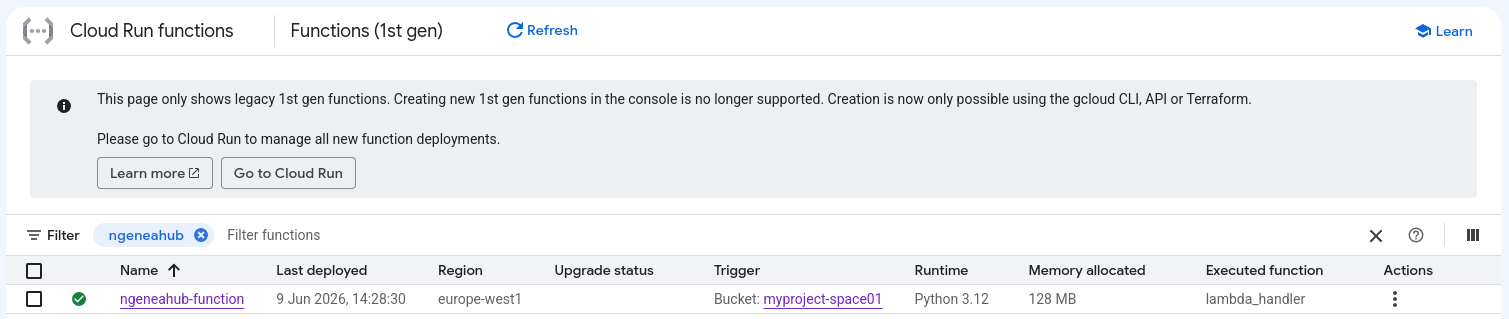
Review the settings of the deployed Cloud Function.
Additional changes can now be made via the UI, or deletion and redeployment.